
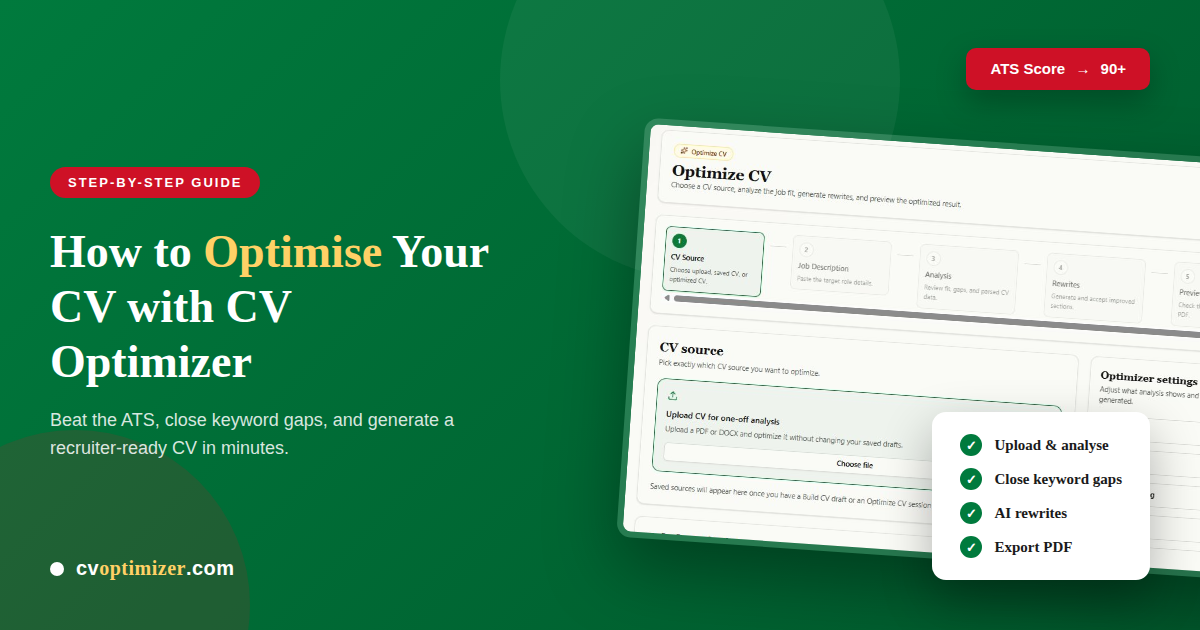
One of the common mistakes applicants make is sending the exact same cv to every job they apply for. And those CVs are being filtered out by an application tracking system known as (ATS) before any human can ever see them. Our CV optimizer tool is built to solve that problem. What it does is analyse your CV against the targeted job description and suggest rewrites where it is necessary.
Below shows The step-by-step guide to optimize the CV:
Step 1 : Upload your cv and adjust the settings
When you click on the CV optimizer you'll see the five setup wizards. Step 1 is for you to pick a CV. You can either upload or you can use the build CV from your profile. Make sure to upload PDF or docs. Don't upload any images.
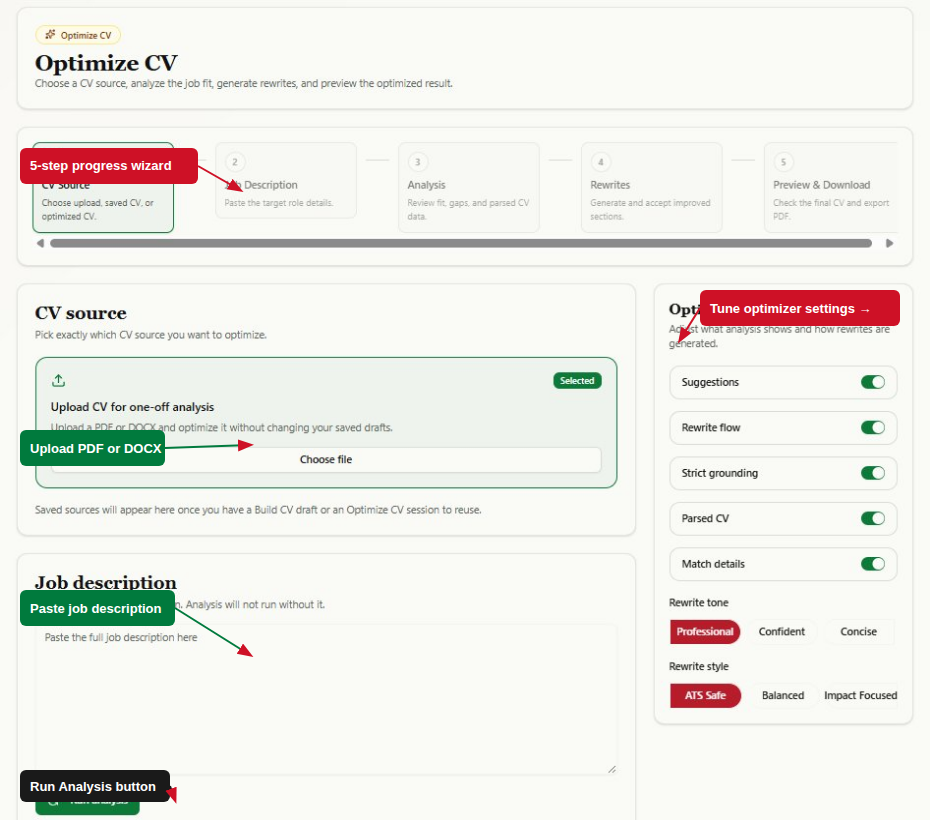
The optimizer settings are on the right side. You can adjust how your rewrite should come out.
- Suggestions : The tool shows 3 different areas of suggestion where you can improve your CV.
- Rewrite flow : smooths bullet points for better readability alongside keyword changes
- Strict grounding : keeps rewrites anchored to what's already in your CV.
- Parsed CV : shows the extracted CV data so you can verify it was read correctly
- Match details : surfaces the full keyword and responsibility gap breakdown
From the toggle button below you can pick the rewrite tone. There are three different options such as professional, confident and concise. At the bottom you will find a rewrite style where you can pick from three options are ATS safe, balanced, impact focused. What ATS safe does is keep the sentence structure simple and all the keywords intact. It could be the safest option for most applications however, Balanced and impact focused work better when it comes to the role where recruiters personally look at the CV.
Step 2 : The analysis of job requirements and your parsed CV
After hitting the analysis button the cv optimizer tool will start processing both job description and cv simultaneously. After that the analysis step breaks into three different panels as you can see in the screenshot.
- Job requirements
- Parsed CV
- The match report
We will discuss further each one in detail below.
Job requirements
The screenshot below shows what the AI extracted from your provided job description, the target role type, seniority, employment type, industry, key responsibilities, and any requirements that are missing from your CV.
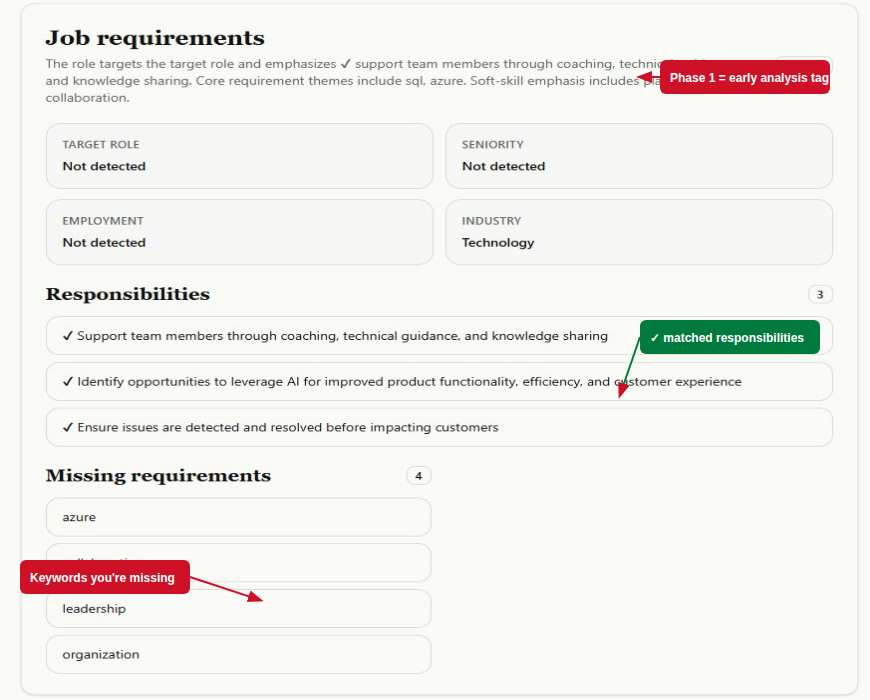
Make sure to take a close look at the Missing requirements section at the bottom. These are the keywords or skills extracted from the job description which Ai couldn't find in your CV. If these skills are genuinely part of your background then accepting the rewrites can bring them to your CV. If it's not then there is a skill gap that needs addressing before applying.
Parsed CV
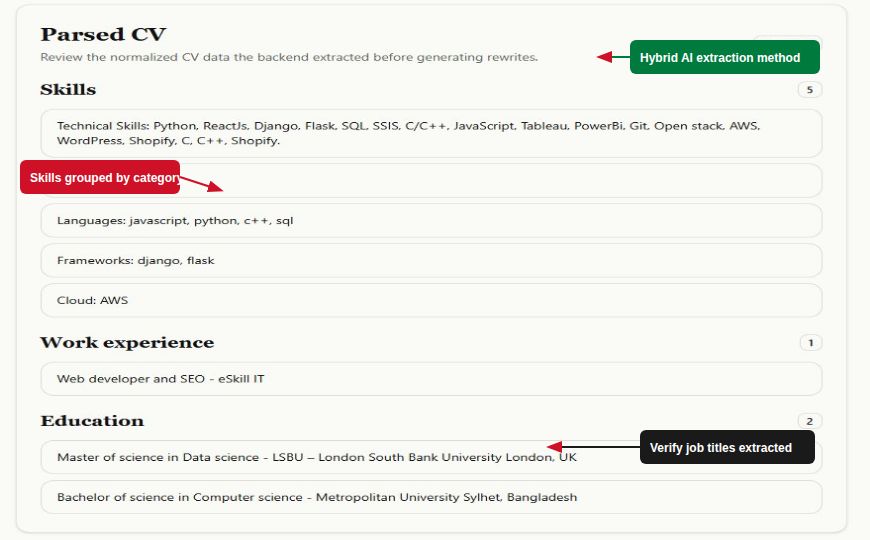
The screenshot below shows the structured data the tool extracted from your uploaded cv. Now you can see your skills, work experience and education. It's important to check this before generating rewrites, because the rewrites are based entirely on what was parsed here.
Step 3 : Match report
The match report will show the gap between your CV and the job description you provided. Four scores will summarise where your CV stands against the job you're applying for.
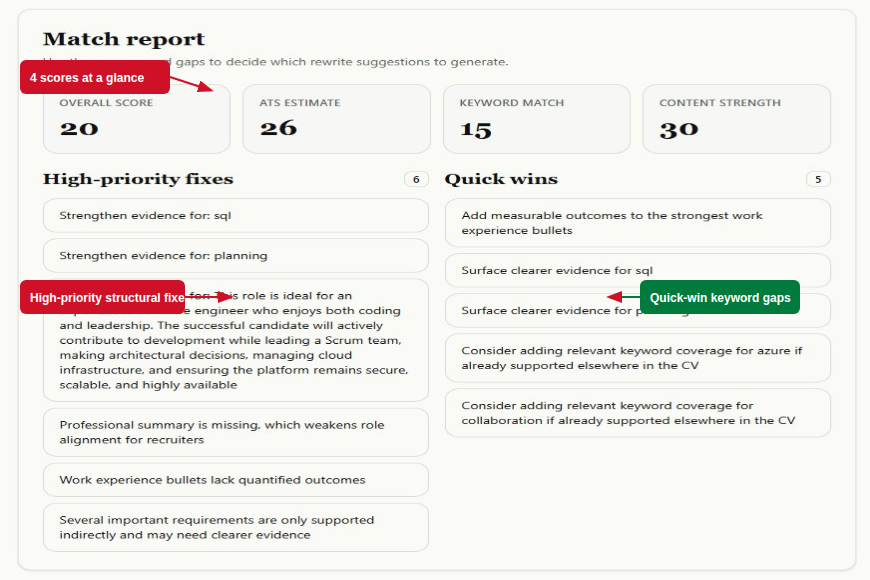
You can see the screenshot shows the two columns' high priority fixes and quick wins. If you don't have a professional summary, or work bullet points it will show on high priority fixes. Basically it focuses on structural issues. Quick wins are smaller changes such as adding keywords that are already mentioned in your CV or fixing a bullet point that is ambiguous for the ATS.
Step 4 : suggestions and rewrites
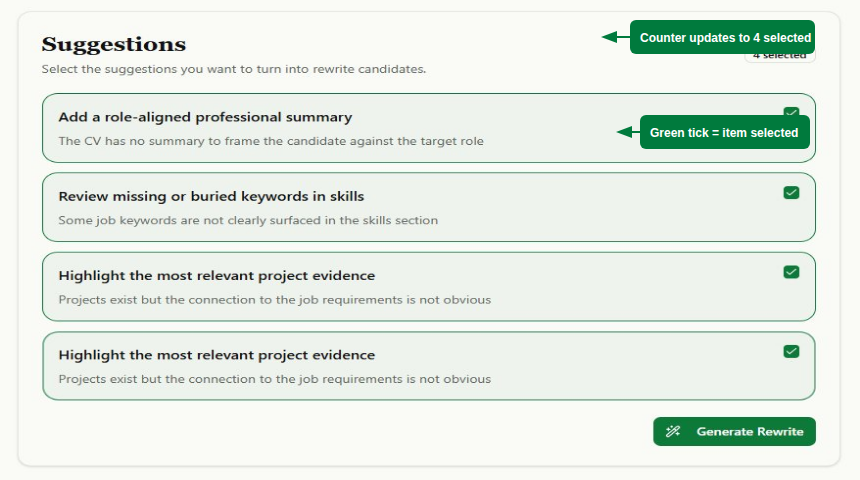
The suggestion panel lists all the improvements cv optimizer tools identified. Each suggestion is connected to a section of your cv and you can rewrite them by selecting and applying it.
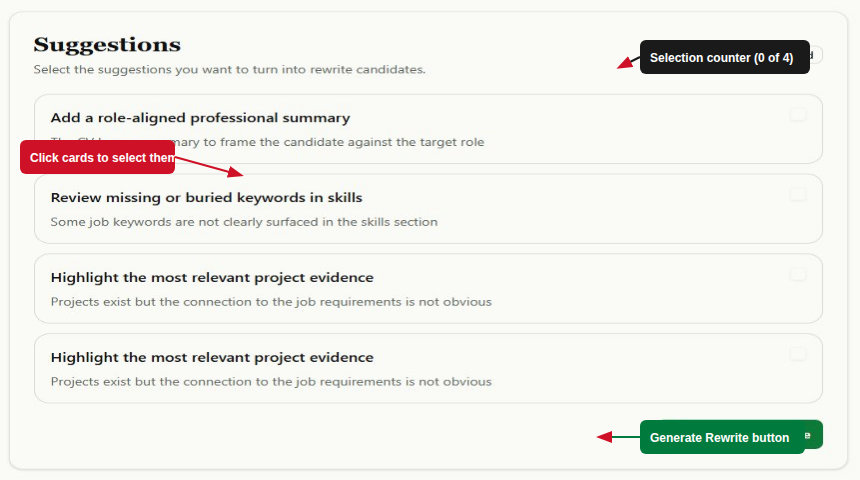
The screenshot below shows how you can select the suggestion and hit the generate rewrite button and everything will be sent to Ai at once.
Step 5 : Review and accepting rewrites
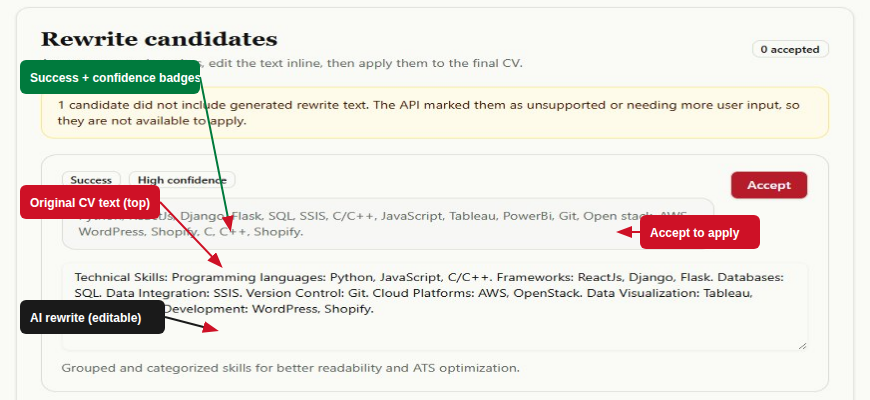
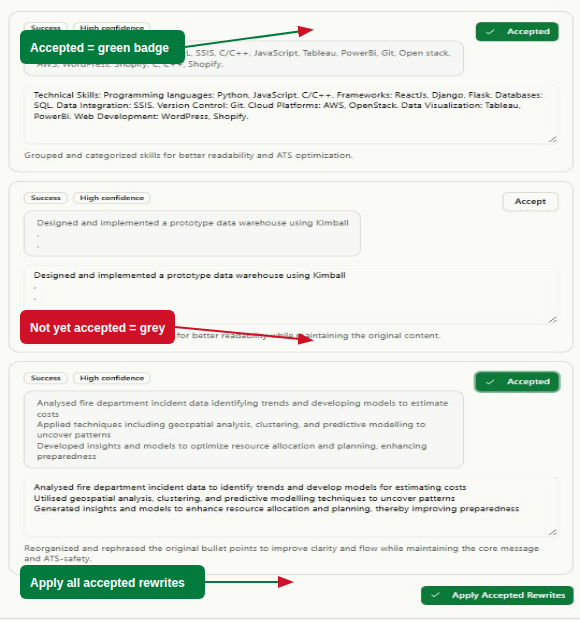
Once it's done generating rewrites, each suggestion will become a rewrite candidate showing a before-and-after comparison. The original text sits in the top box; the AI-proposed version sits below in an editable text area. You can edit the suggestion directly before accepting it.
Applying accepted rewrites
When you're done reviewing your rewrites for each candidate a summary shows all accepted items with an Apply Accepted Rewrites button at the bottom. This merges the changes into your CV data and takes you to the preview step.
Step 6 : Preview and download
The final steps involve checking your cv properly and choosing the right template. Our cvoptimizer tool provided various professional templates you can choose from. There are a total nine templates: Default, Classic, Modern, Minimal Serif, Graduate Starter, Consulting Brief, Creative Minimal, Academic Research, and Operations Dense. Switching between them is instant.
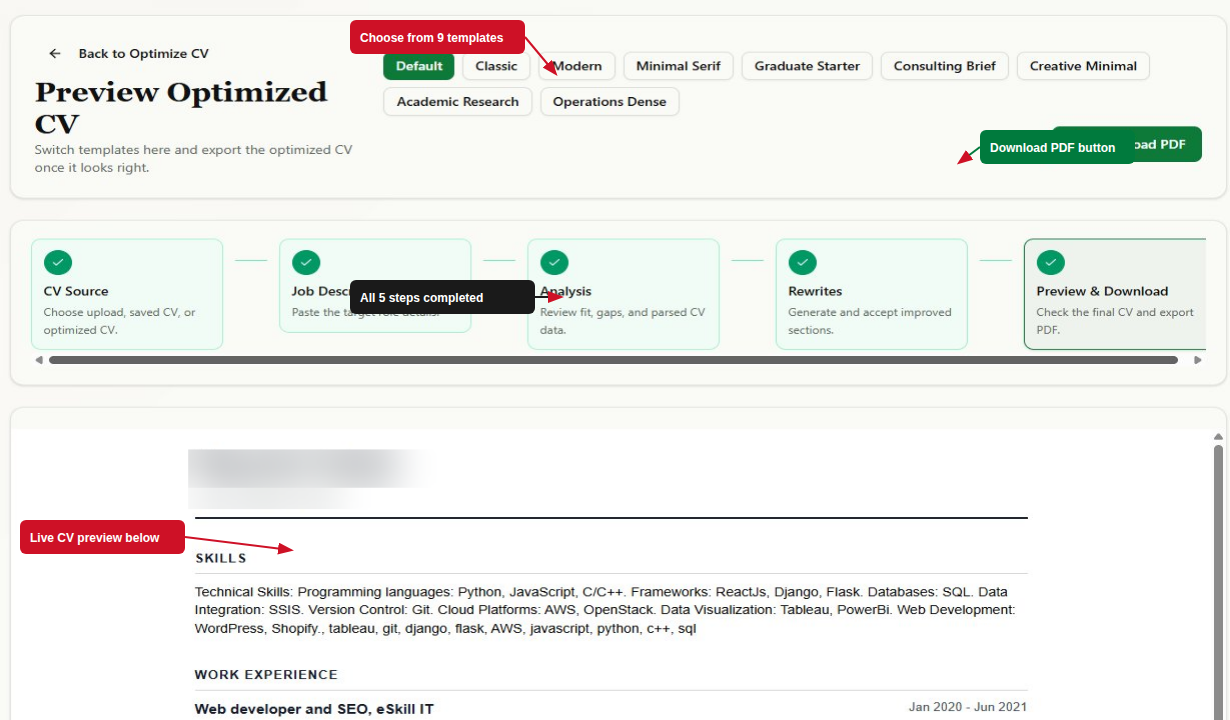
To download your CV just simply click the download PDF button and your CV will be downloaded.
One last tip: run the process fresh for each application rather than reusing an optimised CV from a previous session. Job descriptions vary enough that a CV tailored to one role can actually perform worse on a different one.